McAfee Secure sites help keep you safe from identity theft, credit card fraud, spyware, spam, viruses and online scams
AceReader - Better Business Bureau AceReader - TrustLink AceReader - Windows 7 Compatibility AceReader for Macintosh

Speed Reading - Read Faster! Comprehend More!

Personal Editions of AceReader

Thanks for your Comments and Suggestions!
They ARE important to us!

At StepWare, we are constantly trying to improve our products and support . Our current versions of AceReader were developed from your suggestions, and we owe you for their success. Thank You!

Contact Information
Quick Start Guides
Manuals
FAQ's
Video Tutorials
Contact Information:
Phone: 1-800-ACE-READ (223-7323), Ext. 2
Email: support@stepware.com
Fax: 1-970-243-9482
Address: StepWare, Inc., 320 Dakota Drive, Grand Junction, CO 81507
Quick Start Guides:
PC/Windows Quick Start Guides:
AcReader Elite Quick Start Guide

Macintosh Quick Start Guides:
AcReader Elite Quick Start Guide

Manual:
AceReader Elite Manual(for PC/Windows and Macintosh):
AceReader Elite Manual
FAQ's (Frequently Asked Questions):

What is the best way to use AceReader?

We built the program so that you can use it in a variety of ways:

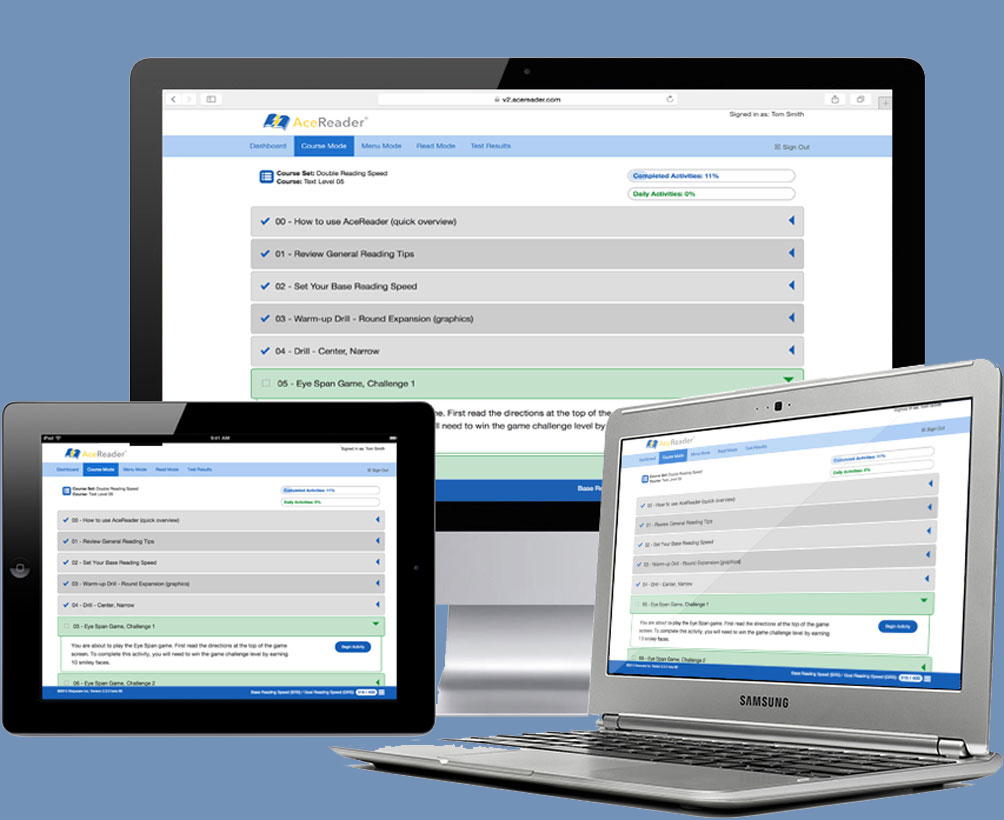
  1. The "Course Mode" will completely automate your training process and will lead you into every training activity.
  2. The "Menu Mode" allows you to pick and choose common training activities and gives you more control.
  3. For the most control, you can enter the "Expert Mode" screen. In the "Expert Mode" screen you have full control over the reading material, display modes and speed settings.

We generally recommend that you use the program 15 to 25 minutes each training session (i.e. every day or every other day). Remember... Success comes from: Positive Attitude, Patience, and Practice. You can do it!

How long does delivery take? What are your delivery fees? Do you accept Purchase Orders?

Download Option (via online credit card order): If you choose the download option, you will get an e-mail almost immediately after you place your order with instructions on how to download, install and activate the program. There is no delivery (shipping/handling) fee when you choose the download delivery option.

CD Option (via online credit card order): If you choose the CD, then we will send it to you via the US Postal Service. Please allow 5 to 10 days for US and Canada plus additional time for international deliveries. We usually ship two times a week, but we will ship immediately upon special request. The delivery fee (shipping/handling) is $7.95 (US Priority or International Air). Note: For online orders, you will also get an e-mail almost immediately after you place your order with instructions on how to download, install and activate the program.

Purchase Orders: We welcome Purchase Orders. This is the typical method for getting orders from schools and learning institutions. For faster processing, feel free to fax your purchase order to: 970-243-9482. We usually ship two times a week, but we will ship immediately upon special request. The delivery fee (shipping/handling) is $5.95 for normal US and Canada orders or $9 for US Priority and international orders.

What is your support policy?

Support is a high priority with us and we make every attempt to be very responsive.

We state that we provide 90 days support, but in reality, we have never turned down a support call or e-mail. We welcome your questions, and we will always do everything in our power to make sure you have all your questions answered.

How do I get rid of my sub-vocalization problem?

Keep in mind that most everyone sub-vocalizes when they read. Fast readers do less sub-vocalizing than slow readers. Your goal should not be to eliminate it, but to minimize it. AceReader can pace you to read at faster speeds. At these faster speeds (i.e. above 400-500 WPM), it is physically impossible to sub-vocalize all the words.

The amount of sub-vocalization that you do will depend on the reading material. It is normal to do more sub-vocalizing with certain types of reading material (i.e. unfamiliar material, poetry and technical material). You should be doing less sub-vocalizing when the reading material is more intuitive, such as newspapers and novels. A simple but good example of a case where you probably do not sub-vocalize at all is when you're reading the Stop sign at your street corner. The word "Stop" becomes a symbol that you instantly recognize and understand without sounding it out in your mind.

Another important point to keep in mind is that there is a difference between "reading" and "studying." When you are studying, you may come across new terms. You will need to sub-vocalize those new terms until they become familiar.

Again, your goal should not be to eliminate sub-vocalization, but to reduce it and to understand that the amount of sub-vocalization that you do will (and should) vary depending on the reading material.

How long will it take for me to see noticeable improvement with my reading speed?

It is very realistic to expect to double or even triple your reading speed with AceReader. Students will typically see a little improvement almost immediately (i.e. after a few sessions), but for a more sustained and substantial improvement, you can expect it to take weeks or even months. We generally recommend that you use the program 15 to 25 minutes each training session (i.e. every day or every other day).

The program is also very useful to ramp your reading speed back up when you have been away from it for a while. Many customers use our program like an exercise machine. They use it to increase their reading fitness and continue to use it periodically to keep themselves in good reading shape. Good "reading shape" in this context is referring to increased "reading speed" while maintaining and many times improving their reading comprehension.

I realize that your program will help reading speed, but what about "comprehension?

AceReader does not teach "how to read" but rather "how to read better." Better means faster and with increased comprehension. It is non-intuitive to believe that with better speed you actually increase comprehension, but that is typically what happens. Better comprehension occurs because when you are reading with better skills, you are not letting your mind wander off, you're staying more focused and you're more engaged in the reading material.

Slow readers typically will see the most improvement when it comes to comprehension, since they have the most to gain. Efficient readers often report that reading becomes more like watching a movie. It becomes more effortless, easy and fun to read.

I have the multi-user Deluxe version of the program. How do I logon as the Admin if I forgot the Admin password?

Click on the Windows Start button, then "All Programs," then under the program group (i.e. AceReader Pro Deluxe). You will see an entry for removing the "Admin" password. Remove it; the next time you logon, you will be double prompted for a new password.

Note: For the Network version, you need to be on the computer where the full program was initially installed (i.e. AceReader Network Server machine).

I'm a home school mom. Which version of the program is right for me?

We recommend "AceReader Pro" if only one person will be using the program and if you are not interested in customizing any of the content.

We recommend "AceReader Pro Deluxe" if there is any chance that more than one family member will use the program. Note: Often the parents use the program in addition to their children.

The Home Deluxe version of the program can handle up to 5 users. The program will remember the program settings and test scores separately for each user. Each time you logon it will remember where you left off (for each user). The program behaves differently for each user. This is because you take timed Reading Comprehension Tests to set your Base Reading Speed, then the Drills pace you at speed relative to your personal Base Reading Speed. As noted above, the Deluxe version also allows you to customize the Tests, Drills and Games with custom content.

I'm a school teacher. Which version of the program is right for me?

For school and learning environments, we recommend either "AceReader Pro Deluxe Plus" or "AceReader Pro Deluxe Network". The Plus version is our stand-alone work station version. The Network version is recommended any time you want to install the software on 6 or more computers. The Network version has the versatility of working on both stand-alone computers and/or on a network. With our Network version, students do not need to sit in front of the same computer for each session, and the teacher can monitor the progress of all the students from any computer on the network. Both versions can handle unlimited users.

If you still have questions, send us an e-mail (support@stepware.com) and let us know how many students and how many computers will be using the software, and we'll respond with our recommendation.

Can I read .pdf, .doc and .docx documents?

With the PC/Windows version you can directly load .pdf, .doc and .docx files. Enter the Expert mode screen then under the File menu, select "Load File." Select the proper file type and select the file. Note: You can also load plain text files (.txt files).

With the Macintosh version, you can directly load .pdf files. You can't directly load .doc or .docx files, but you can still load AceReader with the text from those files via the clipboard. Note: As with the PC verion, you can also load plain text files (.txt files).

Note: Only the text is extracted from the files.

Can you import your own text into AceReader?

Yes. That is one of the powerful features provided by AceReader. There are several ways this can be accomplished. It can be done in a "Formal" or "Informal" manner.

Formal - With our Deluxe versions of the software, teachers and home school parents can create their own Comprehension Tests, Drills and Games by utilizing the built-in Editors. When you use the built-in Editors, you can create custom content that will be made available to everyone using the software (network wide if you have the Network version). One nice feature to take note of is the "readability statistics" feature. It is possible to press a button when using the Reading Comprehension Test Editor or Drill Text Editor, and the readout will instantly tell you the grade level and complexity of the text according the common readability formulas (i.e. Spache, Dale-Chall, Fry Graph ...). Also note that the Editors allow you to "paste" text into the fields, so it is easy to copy/paste text from other applications (i.e. word processors, Web pages...).

Informal - Students can enter the Expert Mode screen and train with text of their own choice, set the options and speeds to whatever they want, then press Play/Stop (sort of like a VCR) to have the text pace them at whatever speed and mode they desire. When in the Expert Mode, students can load plain text files, .pdf files, .doc files, .docx files or load text via the clipboard. The clipboard is the easiest way to quickly load text from Web pages, word processing documents, e-books ...

Note: PC/Windows version will allow you to directly load .pdf, .doc and docx files. Macintosh version will allow you to load .pdf files, but to load .doc or .docx files you need to use the clipboard.

How can I load the Expert mode screen with text from other sources besides .pdf, .doc, .docx and .txt files? I would like to load AceReader with my emails, web pages, e-books...

To load text from sources outside of .pdf, .doc, .docx and .txt files, you can load the contents of the clipboard. For example, if you want to load the Expert Mode screen with text from a Web page, you first copy the text into the clipboard and then paste it into the Expert Mode screen. You can paste it into the Expert Mode screen by either pressing Cntrl-V or by going to the File menu and selecting "Load Clipboard (Paste)."

Please refer to the Help or Manual for a more detailed explanation. Refer to the section under the Expert Mode called "How to Load/Save Reading Material."

In the Expert Mode, I noticed that the Target Speed does not match the Actual Speed. Why is that?

If any of the "Fine Tune" speed options are turned on, then the Target speed will most likely not match the Actual speed.

Refer to the "Fine Tune" speed options. Go to the "Options" menu then select "Fine Tune Speed Options." Turn off all the "Fine Tune" speed options if you want the Target speed to match Actual speed.

Note: Many of the "Preset-Options" will set or not set the "Fine Tune" speed options.

You can refer to the bottom/left portion of the screen. That portion of the screen will indicate if any of the Fine Tune Speed options are turned on.

If you turn off all the "Fine Tune" speed options then you will have the best chance for the Target speed to match the Actual speed.

To demonstrate this, try turning off all the Fine Tune options. Then press Play. If you let it run until it stops on its own, the Actual speed should be close to the Target speed. To test this, try pressing the "Burst Forward" (lower middle button) and let it run until it stops.

Can I change the words that are used with the Games?

Yes. Our Deluxe versions of the software include built-in Editors that allow you to incorporate your own text for all of the Games. The program also includes Editors that allow you to create your own Tests and Drills.

Can I change what keys to press for certain functions while in the Expert Mode screen?

Yes. Click on the Options menu then select "Set Key Mapping." You can map keys to all the main functions (i.e. Start, Stop, Load Clipboard, Faster Speed, Slower Speed, Page Back, Page Forward, Burst Forward, Burst Repeat).

How do I print test results?

When viewing the test results, you will see a "Copy to Notepad" button. You can press that button, and it will create a Notepad document with the results. You can then print the results.

Note: It is also possible to export test results through the Admin functions to a tab or semicolon delimited file. The file can then be imported into a spreadsheet program for further processing and/or printing.

Where am I suppose to focus my eyes while playing the eye span games?

You're really trying to accomplish two things with the Eye Span Games:

  1. You're trying to widen your eye fixation zone (ability to take in more during single eye fixation).
  2. You're trying to increase your speed between eye fixations.

We typically recommend that you start out with the default settings and first concentrate on item 1 (specified above) by looking pretty much in the center of the screen. Then as you widen the text to something that you can't see when looking at the center, you will start to work on item 2 (specified above) by re-fixating your eyes at a more rapid rate to see all the text.

Do you have a hand held version of AceReader?

We have considered developing a version for the hand held market, but we currently do not have plans to do so. We are concentrating on the Educational features for both the PC/Windows and Macintosh platforms.

What grade levels is AceReader for?

The program is used for all grade levels. We include reading material for grades 1 through 12 plus a college/adult level. Even for adults, it's fine to train with level 3 on up. It's important to remember that newspapers are written for adults, and they are typically written at about the 6th to 8th grade level.

We recommended that you think of our "Levels" as "complexity levels" instead of as "grade levels."

We level our material by running the text through common readability formulas. We use the Spache formula for grades 1-3 and the Dale-Chall formula for grade 4 through adult. We cross-check the results with the Fry Graph for accuracy.

Note: The Deluxe versions of the program come with the readability formulas built-in. When creating your own custom Tests or Drill text, you can perform readability stats on the text to help you determine the grade level and complexity of the text. This is a powerful and handy feature used by many teachers and home school parents.

What level should I start my child who is currently in the 5th grade?

We typically recommend anyone in grade school to start with Level 1, and we typically recommend everyone else to start at Level 3. If you find that the current Level is too elementary, you may want to jump up one or several Levels. Keep in mind that newspapers are written for adults and newspapers are typically written at about the 6th to 8th grade level. You should consider the "Levels" as "complexity levels" and not as "grade levels."

How does your software compare to other products?

To tell you the truth, we don't spend much time looking at other products. Instead, we simply try to implement the features that our customers (many of which are teachers and reading experts) keep requesting. We have a tight customer feedback loop, and that is how our product has evolved over the past decade.

We believe that almost all products have their strengths. Sometimes it may even make sense to use more than one product. For example, our product has been recommended by speed reading teachers all around the world and one in particular that we work with is Abby Marks Beale. She has a book "10 Days to Faster Reading" that you can obtain for free if you order AceReader Pro from: http://www.revitupreading.com/acereader_speed_reading_software.asp. A book/software combo is a nice way to get more for your money.

We can tell you that our product works. We have very many satisfied customers. We commonly hear about students that have doubled or tripled their reading speeds. You may want to refer to: http://www.acereader.com/testimonials/index.html to see what some of them have to say. We have also won many honors and awards; you can find them at: http:www.acereader.com/awards_reviews/index.html.

We have been told by customers that they like our program the best since we offer several ways to use the program. You can use the Course Mode, Menu Mode or Expert Mode, depending on how much control you want to have over your training process.

One powerful feature worth mentioning is that our product is very customizable. We provide all the Tests and Drills you need, but you can purchase additional Test Sets, create your own Drills, and with our Deluxe version, you can create your own Comprehension Tests. Creating your own Comprehension Tests is very useful for teacher/school environments.

If you enter our Expert Mode, you can load plain text files and/or paste text in from the clipboard. By utilizing the clipboard, you can bring in text from Web pages, e-books, word processing documents, and pdf files. You can load the text of your choice, set the speed and options the way you want, then simply press the Play/Stop buttons (sort of like a VCR) to have full control of your practice sessions.

Another point worth mentioning is: that you can also use our product as an "Online Reader" (a productivity tool vs an educational tool). Many people use our product to read more efficiently while online by displaying a few words at a time in the center of the screen. In this mode, the words are coming to your eyes instead of your eyes going to the words. Many people find reading in this fashion much more efficient.

We take our product and our support very seriously, so don't hesitate to contact us if you have more questions (support@stepware.com)

Is there a yearly fee? Do you charge for upgrades?

We do not charge a yearly fee. When you purchase the program, you own it forever.

Minor upgrades are free and we do sometimes charge for major upgrades. However, we don't have many major upgrades (i.e. years between). If we come out with a major upgrade, it is free for recent customers.

Can I install the software on more than one computer?

For home users, you're welcome to load the software onto more than one computer (i.e. your desktop, laptop, home computer and/or work computer) if you are the only person using the software. If more than one person will be using the software, then you may want to consider our Deluxe version. With our Deluxe version, the program settings and test scores will be kept separate for each user. The program behaves differently for each user (i.e. Drill pacing).

Note: We also have multi-computer licenses which need to be purchased for schools, learning institutions and businesses.

What research, testimonials, awards and reviews are available for your product?

  1. Research:
    http://www.acereader.com/eduation/resources.html#white
  2. Testimonials:
    http://www.acereader.com/testimonials/index.html
  3. Awards and Reviews:
    http://www.acereader.com/awards_reviews/index.html

    Note: We have won many over 50 awards and honors. One award of which we are especially proud is from Technology & Learning. They named AceReader as a winner for the year and then named AceReader the "Top" winner out of all the winners. We felt very honored since other winners were Plato, Scholastic, Microsoft and Apple just to name a few. You can read more about it at: http://www.acereader.com/about/press.html.

Do you have a reseller program?

We do have some reseller programs. Please send an e-mail to support@stepware.com and specify how you plan to sell the program? Then we can try to figure out the right reseller program for your needs.

Note: We require that resellers are first our customers. We feel it is important to experience what it is like to be an AceReader customer before becoming an effective reseller.

How can I try the Network demo version?

Server Installation Instructions:

  1. Download AceReader Pro Deluxe Network by clicking on the following link: http://www.stepware.com/arpdn.exe
  2. Run arpdn.exe to install the program.
  3. Follow the prompts.

    Note: The folder of where you install AceReader Pro (Server) needs to be a shared folder that all other networked computers have full read/write/create/execute access to.

Client Installation Instructions:

  1. Using the Windows Explorer, you will need to navigate to the networked Server Machine and locate the directory of where you installed AceReader Pro i.e. \\server-machine\Program Files\AceReader Pro (Server)).
  2. Double click on Client_Setup.exe
  3. Follow the prompts.

    Note: You do not need to install Clients. Clients should only be installed if you want to use AceReader on more than one computer (i.e. a reading lab environment) and if you want a central database. You can install the server onto individual computers if you do not want to share a central database.

Do you support other languages?

We offer both English and Spanish editions of the AceReader product line. This means the user interface and the reading material that we provide is in English for the English editions and in Spanish for the Spanish editions. But please note that in terms of content that you can load into AceReader, the International ASCII character set is supported and you can load text that is in other languages (i.e. Spanish, French, German, Italian...). If you set your computer language settings, you can even load Asian content such as Japanese, Chinese, Korean... .

You can load AceReader with files (.txt, .doc, .docx and .pdf files) and also by using the clipboard. When you use the clipboard, you can bring in text from Web pages, word processing documents, e-books, e-mail, and the like.

The Deluxe versions of the program allow you to incorporate your own text into the program for use with the Tests, Drills and Games.

We also sell a text-to-speech add-on for the PC versions of the software. The text-to-speech add-on will vocalize the words as they are displayed on the screen. We have English, Spanish, French and German voices. It should be noted that these are very high quality human sounding voices.

Refer to other FAQ entries for examples on how to setup your computer to allow AceReader to work with other languages such as Arabic, Japanese and Chinese and other languages.

Is there support for Arabic?

Our program does support the International ASCII character set, so you should not have problems with European languages (i.e. French, German, Spanish, Italian).

For Arabic, you may need to set your Windows up for your language. You may need to do the following:

  • Bring up Control Panel
  • Select Language
  • Select Add other languages
  • Select the Advanced tab
  • Select your language in "Language for non-Unicode programs" section.

How can I display Japanese or Chinese text?

For Japanese or Chinese, you may need to change your Windows settings. You may need to do the following and then restart your computer:

  • Open Control Panel in Windows Settings
  • Open Regional and Language Options
  • Select Tab labelled Advanced
  • Find Japanese or Chinese in "Language for non-Unicode programs"
  • OK

If it still does not work, ensure the selected language is enabled:

  • Open Control Panel in Windows Settings
  • Open Regional and Language Options
  • Select Tab labelled Advanced
  • Tick the box for "Extend support of advanced text services to all programs" in "Compatibility Configuration"
  • Select Tab labelled Languages
  • Click on Details in "Text services and input languages"
  • Click on Add in "Installed services"
  • Choose your input language and keyboard
  • OK

I live in Korea, and I'm having trouble starting/using the AceReader program. How can I get AceReader to work?

We have heard from Korean customers that you need to change the Locale setting to English. Follow these steps:

  1. Left click your Windows Start button (lower left of your computer screen).
  2. Move your mouse over "Settings", then left click on the "Control Panel" menu item.
  3. Double click on your "National Option" or "Regional Settings" icon.
  4. On your machine, you may need to select the "General" or "Regional Settings" tab.
  5. Change your User Locale from Korean to English.

I believe that the above change will only effect how dates, times, currency and numbers are displayed on your system. I think if you can live with it set to English, then your AceReader TL221MN.DLL problem will go away.

NOTE: You can also refer to: http://www.stepware.com/korean/korean.htm for another explanation on how to fix this problem.

Does AceReader help with dyslexia?

In general our software is typically used to assess and improve reading skills.

The software flashes text and paces eye movement. Dyslexia is not our main focus with the program, but many reading specialist use our software for their dyslexic students. Most of the people who purchase the program for dyslexic students already know how they want to use the program for their needs.

Several features within the program that have been useful for dyslexia students are: (1) Usage of the Eye Span Game where it's flashing multiple words at a time and the student is asking themselves if the words are identical. (2) The Expert Mode since you have full control over the content, display modes (including font, font color and background colors) and speed settings. (3) Also the use of the Text-To-Speech add-on. With the Text-To-Speech add-on students are getting a multi-sensory reading experience since they will both see and hear the words at the same time. The Text-To-Speech add-on is typically used in the Expert Mode which allows you to load in your own text.

We would recommend that you contact a dyslexia expert. One customer of ours that uses it for this purpose is Jean Snyder. You can contact her to see how she uses AceReader to help with her dyslexic students. She is one of our references, and her contact information is below:

Jean Snyder
ashder_rent@yahoo.com
1590 Abbotts Lane
Copper Canyon, TX 76226
Telephone: 972-539-8693

Is it possible to migrate the user data from a version 4.x installation to the installation of your current version?

Yes. Our latest version now separates the program files from the data files since that was a requirement for Vista Certification. You need to copy the user data from the old installation folder to the new installation folder. Note: Even if you uninstalled the old version, you should still find the data in the original place since the uninstall does not remove user data. First exit the program so that it's not running, then proceed with the following directions.

For all the multi-user Deluxe versions, you need to copy the user folder from the original old installation folder (i.e. C:\Program Files\AceReader Pro Deluxe\Users\Tom) to the new data folder (i.e. C:\Documents and Settings\All Users\Application Data\AceReader Pro Deluxe\users\Tom).

For the single user AceReader Pro version, you will need to copy the testres3.db from the original old installation folder (i.e. C:\Program Files\AceReader Pro\testres3.db) to the new data installation folder (i.e. C:\Documents and Settings\All Users\Application Data\AceReader Pro\testres3.db).

How do I reset the program?

Keep in mind that when the program has been reset, you may see tests that you have been exposed to in the past. Having said that, it is understood that sometimes you may want to reset the program (i.e. if you have not used the program in a great while and you want to start using it again.)

To rest the program, you need to do two things: (1) From the "Admin" tab, select "Clear Individual or All User Comprehension Test Results" and then proceed to clear all the test results. (2) From the "Course Mode" tab, press the "Change Course" button, then select (or re-select) the course you want to perform and press "OK". Select "Yes" to the questions.

Our school uses Novel. Will your program work in a Novel environment?

Yes. We have a lot of schools using our program that are also using Novel. If you have any problem, just call or e-mail us and we will work with you to resolve any issues.

We are running the network version and when we start the client we get a security warning. Is there a way to get rid of that warning message?

Yes. You can turn off all of these messages by doing as follows:

  • Open up internet Explorer
  • Tools -> Internet options
  • Click on Security tab
  • Click on custom level button
  • Under "Launching applications and unsafe files" click enable